

Workspace budgets are available on the Enterprise plan. In the dashboard, only Organization Administrators can create, edit, or delete budgets — other workspace members can view budgets and current spend but cannot modify them. Programmatic budget management uses organization management API keys, which operate at the account level. Contact sales to get started.
How It Works
Each workspace can have up to four budgets, one per interval:
When a request comes in, OpenRouter checks the workspace’s current spend against every configured budget. If any budget is met or exceeded, the request returns a
403 Forbidden error:
Ordering Rule
Budget limits must be strictly decreasing as the interval narrows:Setting Budgets in the Dashboard
- Go to your workspace’s Settings page at
https://openrouter.ai/workspaces/<slug>/settings - Scroll to the Budgets section
- Click Add budget, choose an interval, and enter a dollar amount
- Repeat for additional intervals
- Click Save
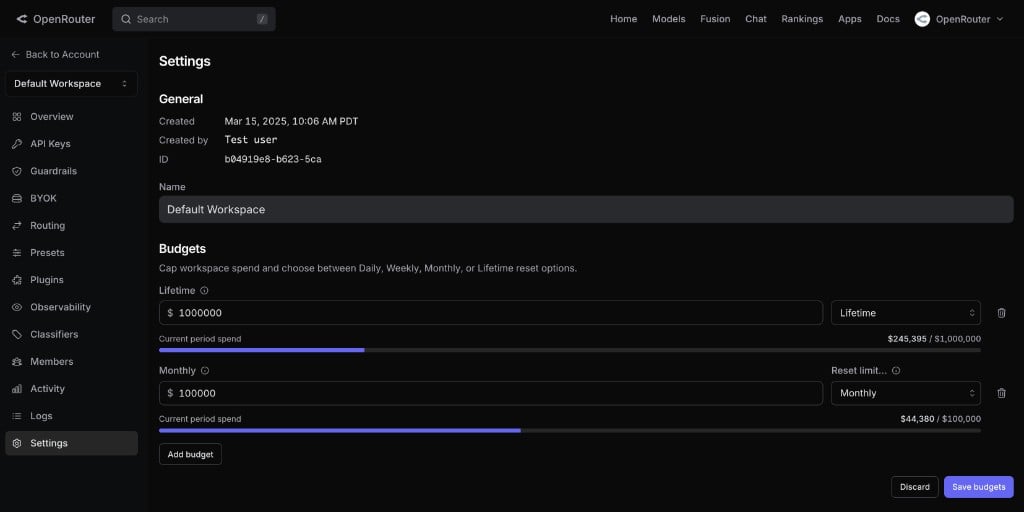
These dashboard steps require the Organization Administrator role. Members can see the budgets, the spend bars, and the Include BYOK spend setting, but cannot change them.
Setting Budgets via the API
You can also manage budgets programmatically using an organization management API key. Management keys operate at the account level and can perform administrative actions across all workspaces. The budget endpoints live under/api/v1/workspaces/{workspace_ref}/budgets.
List Budgets
include_byok_in_budgets sits alongside data rather than on each budget row, because it applies to the whole workspace rather than to a single interval. See Including BYOK spend.
Create or Update a Budget
UsePUT with the interval in the path. If a budget for that interval already exists, it’s updated.
daily, weekly, monthly, lifetime.
The response echoes the created or updated budget plus the workspace’s current BYOK setting:
400 Bad Request with a message like:
Including BYOK Spend
By default, only OpenRouter credit spend counts toward a workspace’s budgets. Setinclude_byok_in_budgets to true to also count BYOK inference spend — the amount OpenRouter would have charged had the request not used your own provider key:
- It applies to the whole workspace. The interval in the request URL doesn’t scope BYOK inclusion.
- Omit it to leave the current setting unchanged. Only send it when you intend to change it; sending
falseexplicitly turns inclusion off.
GET /api/v1/workspaces/{id}).
A change made through the API applies to budget enforcement immediately. An already-open workspace settings page in the dashboard may keep showing the previous value until it is reloaded.
Delete a Budget
Spend Tracking
Budget enforcement uses OpenRouter’s usage pipeline, which tracks spend per workspace across each interval window. The progress bar in the dashboard shows real-time spend relative to each configured limit. By default only OpenRouter credit spend is tracked against a budget. With Include BYOK spend enabled, BYOK inference spend is added to the same total. When you create a workspace, spend starts at zero for every interval. Periodic budgets (daily, weekly, monthly) reset automatically at the start of each period. lifetime budgets accumulate indefinitely.Budgets During Workspace Creation
Enterprise org admins can also set budgets when creating a new workspace. The workspace creation form includes an optional Budgets section where you can configure limits before any keys are issued, along with the Include BYOK spend toggle.FAQ
What happens to in-flight requests when a budget is exceeded?
What happens to in-flight requests when a budget is exceeded?
Budget checks run before the request is routed to a provider. In-flight requests that were already dispatched will complete, so actual spend may slightly exceed the budget limit. The next request after the overage is detected will be blocked.
Do BYOK (Bring Your Own Key) requests count against workspace budgets?
Do BYOK (Bring Your Own Key) requests count against workspace budgets?
By default, no — workspace budgets apply to OpenRouter-billed spend, so BYOK requests routed with your own provider key don’t count.You can opt in per workspace by enabling Include BYOK spend in the dashboard, or by setting
include_byok_in_budgets to true on the budget endpoint. When enabled, the amount OpenRouter would have charged had the request not used your own provider key counts toward every interval for that workspace.Can I set budgets on the Default workspace?
Can I set budgets on the Default workspace?
Yes. Every workspace — including the Default workspace — can have budgets configured.
Who gets notified when a budget is exceeded?
Who gets notified when a budget is exceeded?
Users receive a
403 Forbidden error on the blocked request with a message naming the exceeded budget. To hear about it before that happens, turn on the workspace budget limit alert, which fires at chosen percentages of the budget. Budget status is also visible in the workspace settings dashboard.Can workspace members override a budget?
Can workspace members override a budget?
No. In the dashboard, only organization admins can modify budgets. Programmatic changes require an organization management API key. Members whose requests are blocked should contact their org admin to raise the limit.